User guide
Find results, read points and manage your athlete profile
Real screenshots show each step. The red boxes and numbers in an image match the notes beside it. The IDs, scores and names in the screenshots are synthetic examples, not real athletes. Select an image to open it full size.
Find a result
1Search on the home page
Choose the season on the home page, enter a public athlete ID or approved display name, then select Search. Published results are available to everyone.
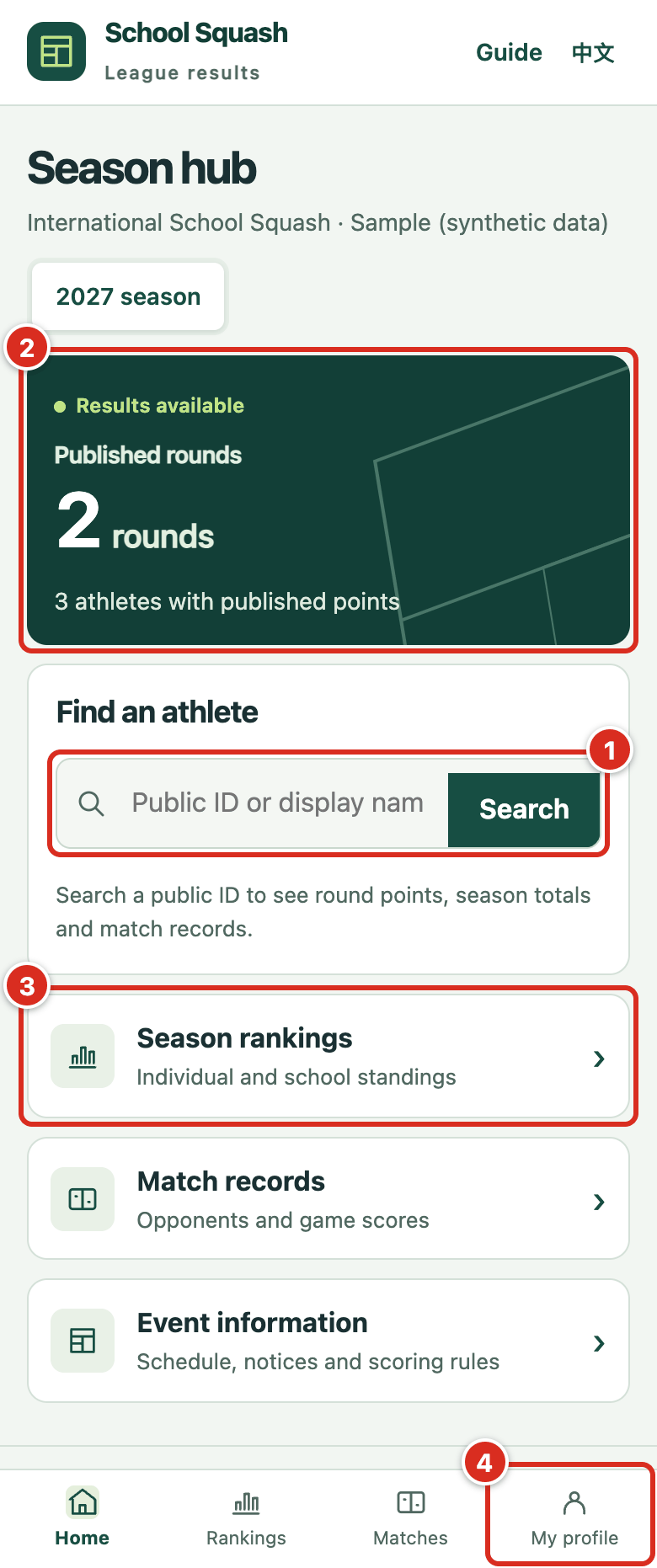
- Enter a public athlete ID or an approved display name, then select Search.
- This panel shows how many rounds are published and how many athletes have points. Rounds that are not published never appear.
- Season rankings shows individual and school points by round and in total. Match records and Event information are right below.
- My profile in the bottom bar is where you register or view your athlete profile.
2Read the rankings
Open Rankings, pick the division and round, and read the rank and points.
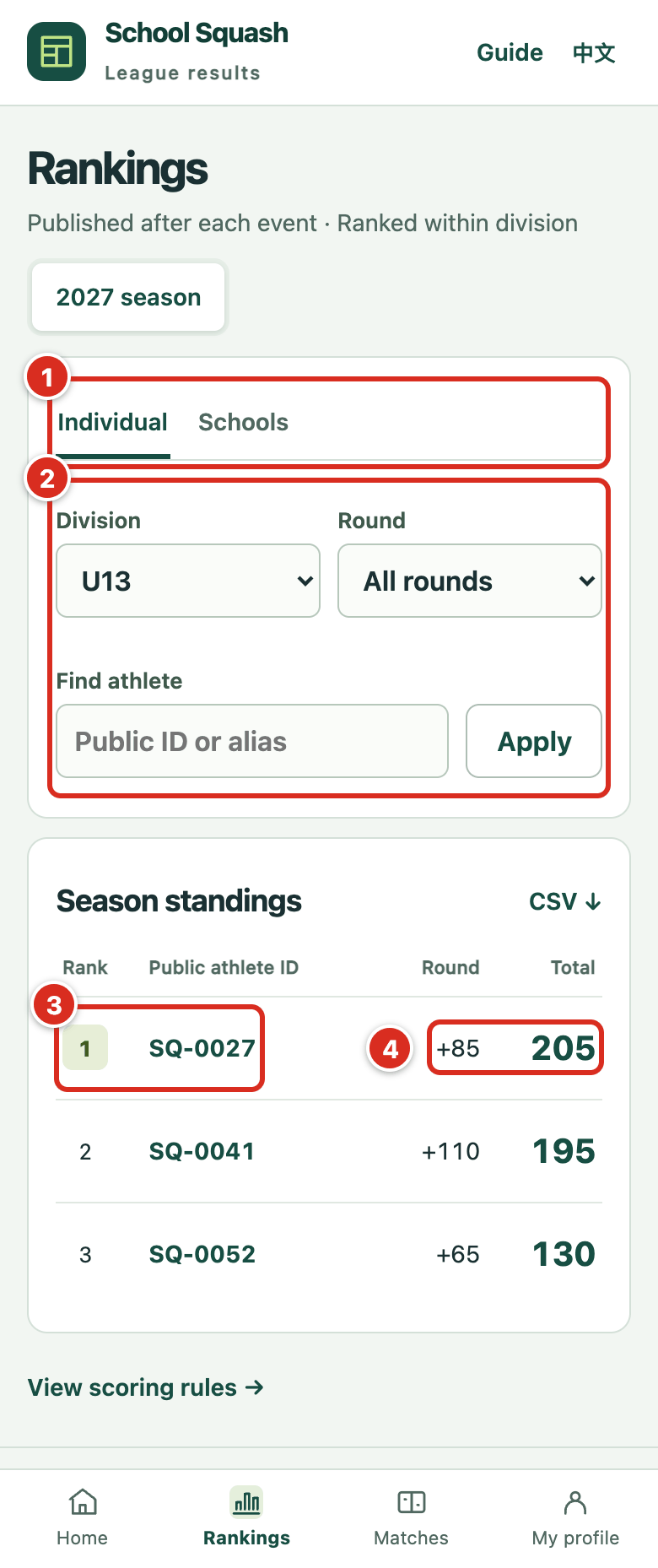
- Switch between Individual and Schools. School standings are reviewed and published separately.
- Choose a division (for example U13) and a round, or type an ID to find one athlete, then select Apply.
- Rank and public athlete ID. Select the ID to open that athlete’s results.
- Round shows the points from the latest round and Total adds every published round this season. After you pick a round, the last column becomes Points. CSV at the top right downloads this public table.
3Open an athlete’s round details
Select an athlete in the rankings to see their season total and the placement, completion and newcomer points for each round.
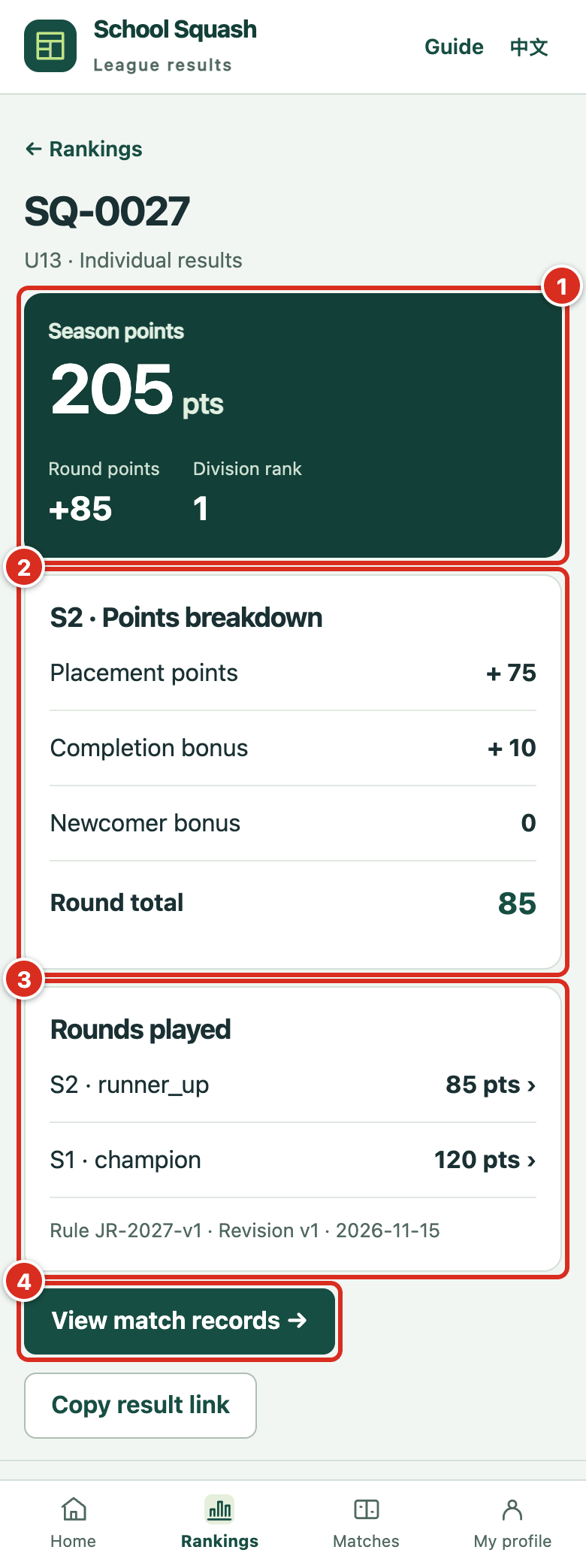
- Season points, plus the points for the selected round and the division rank.
- Points breakdown for the selected round: placement, completion and newcomer points on separate lines, adding up to Round total.
- Placement and points for every round. Select a row to switch the breakdown above. The small line gives the rule and revision version; quote it if you question a score.
- Select View match records to see the match scores for this round.
4Check the match records
Open match records and filter by round or stage. Expand Game scores for each game. The Teams tab lists team ties.
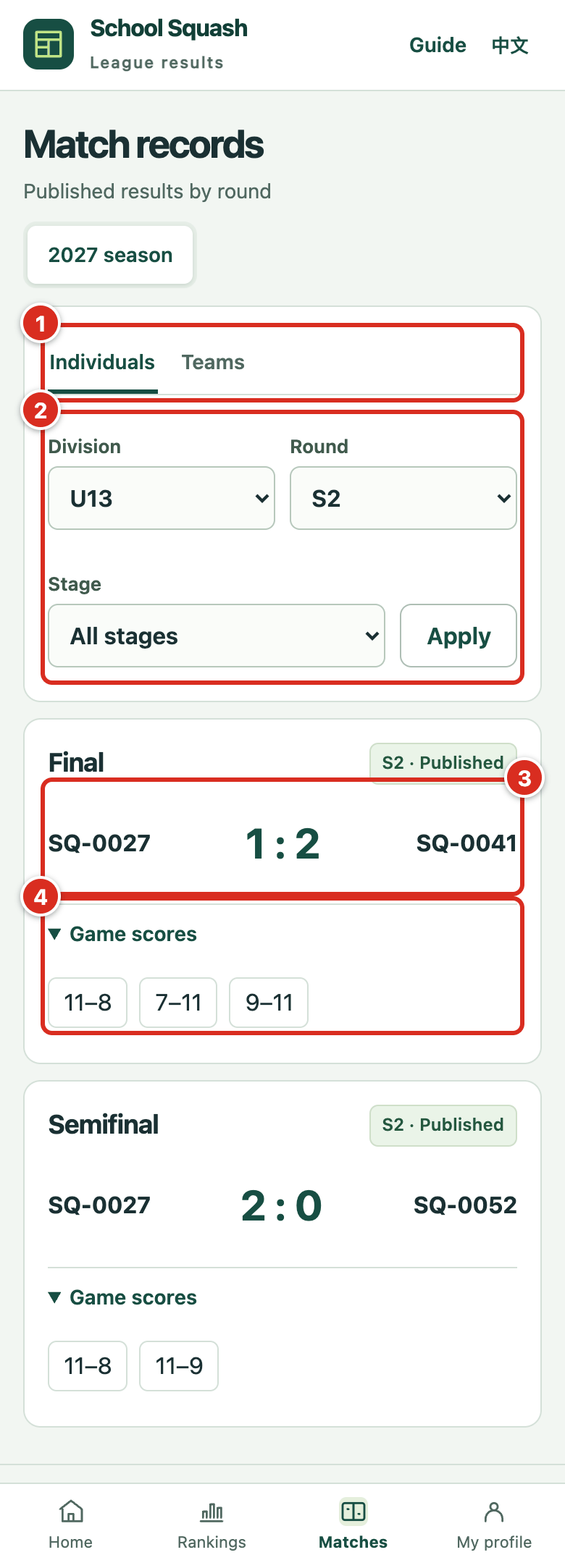
- Switch between Individuals and Teams. Team ties are under Teams.
- Choose a division, round and stage (for example Final), then select Apply.
- One match: the public athlete IDs sit on either side with the match score in the middle.
- Open Game scores for each game. If it says game-by-game scores are unavailable, the confirmed match score still applies.
Register or update a profile
1Verify the phone number
Open My profile and verify the phone number or registered athlete ID using the verification code.
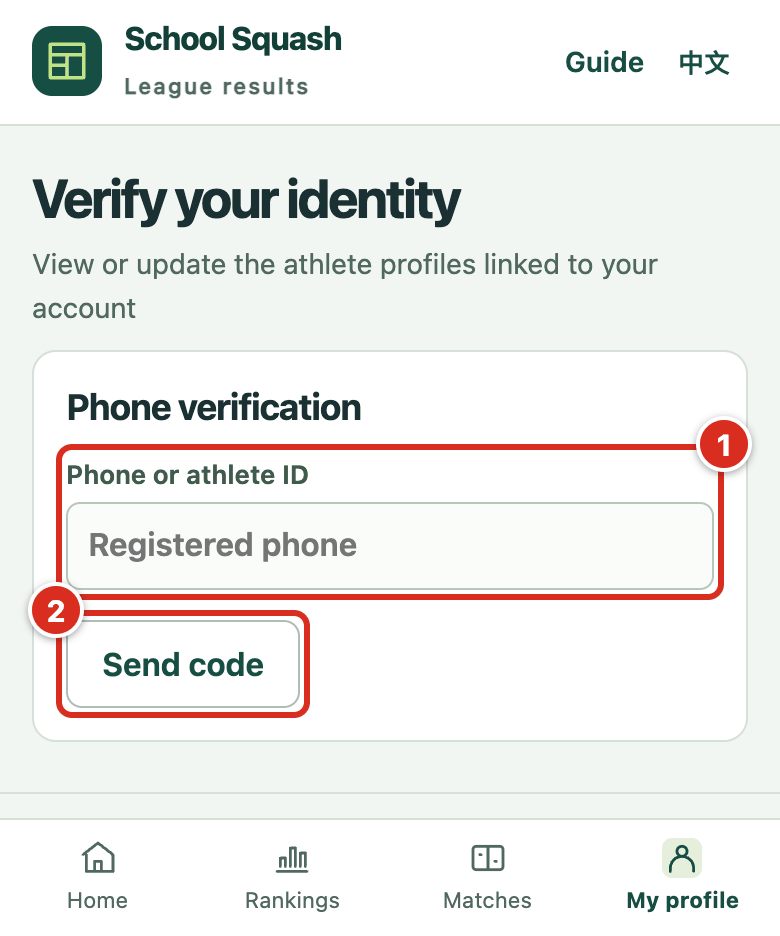
- Enter the registered phone number or a registered athlete ID.
- Select Send code. The code goes to the registered number and stays valid for five minutes.
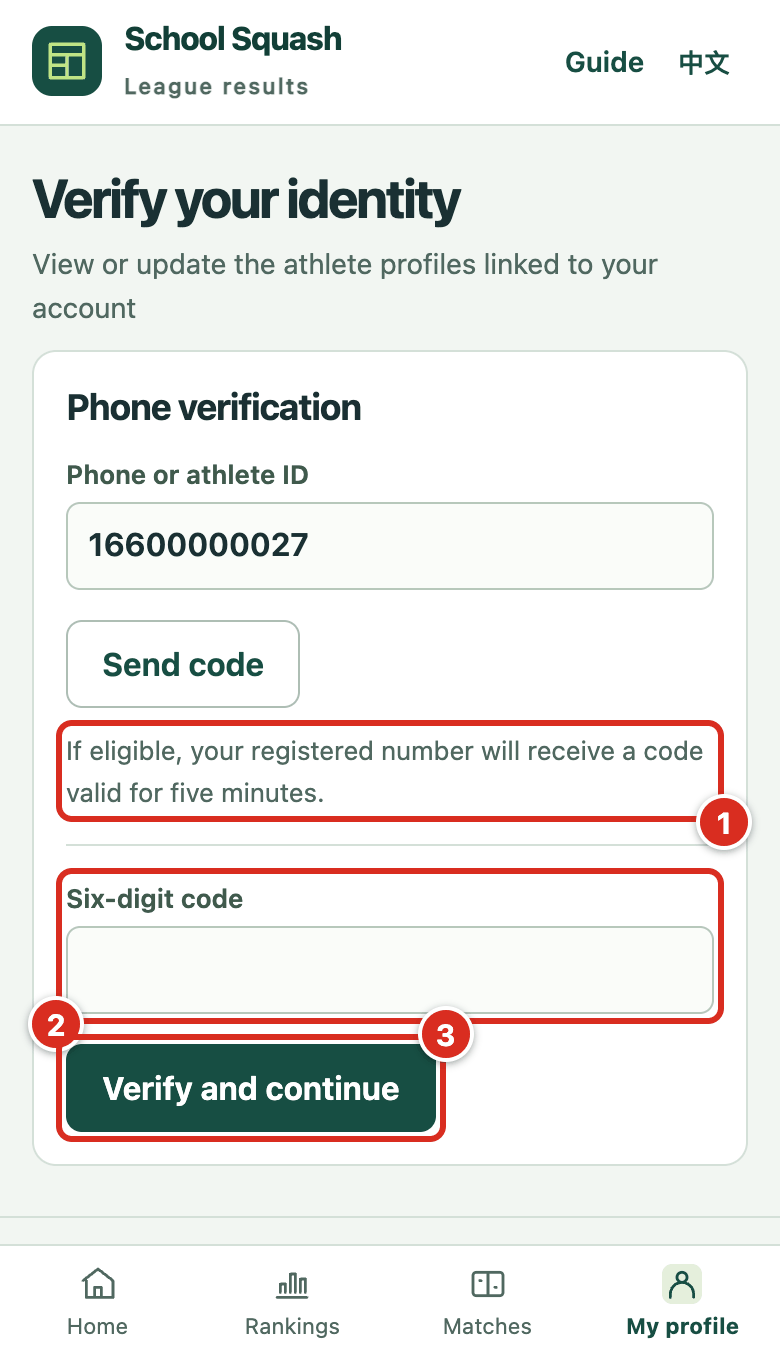
- The page never says whether a number is registered. If it can receive, the code goes to the registered number.
- Enter the six-digit code you received.
- Select Verify and continue. A code is valid for five minutes and works once. Five wrong entries invalidate it, and you must wait 60 seconds before asking for a new one.
2First time: claim the athlete
Enter name, school, gender, grade and age. Claim with the event-issued invitation and athlete ID, or request manual review if you need an invitation.
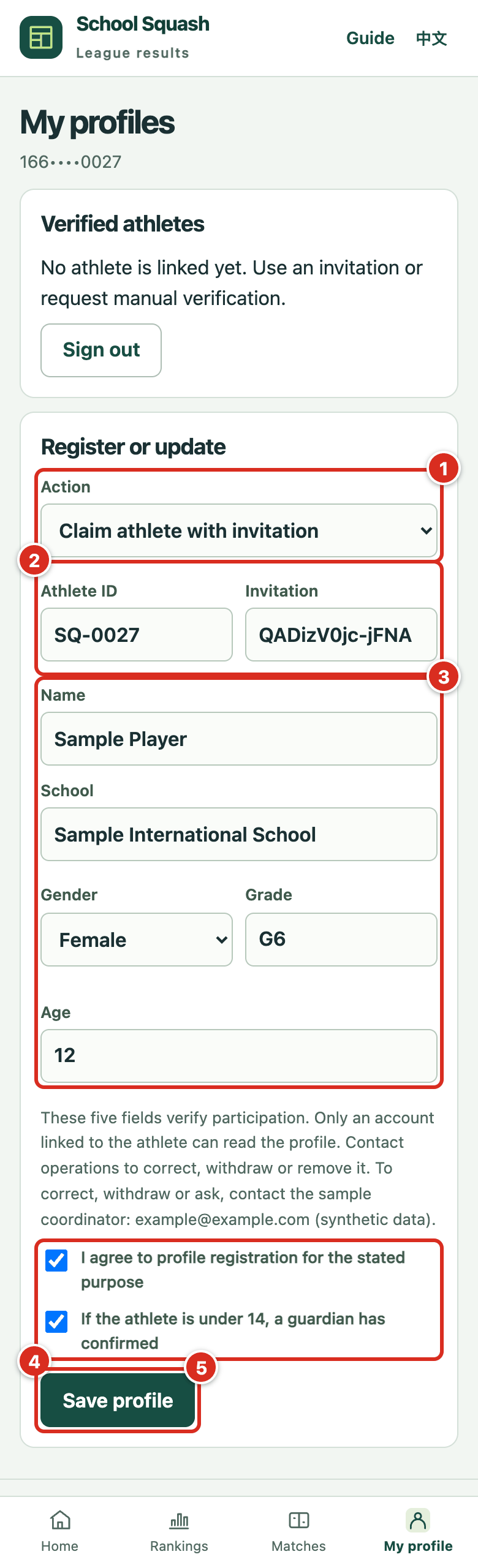
- Action: if the organizer gave you an invitation, choose Claim athlete with invitation. Without one, choose Request review or new athlete.
- Enter the athlete ID and the invitation the organizer issued. An invitation works once and expires 24 hours after it is issued.
- The five fields: name, school, gender, grade and age. Only an account linked to the athlete can see them. They never appear on public pages.
- Tick the consent box. If the athlete is under 14, also tick the guardian confirmation.
- Select Save profile.
3After saving
After verification, switch between the athletes linked to your account or update a profile. For a phone change, unlinking or withdrawal, contact the organizer.
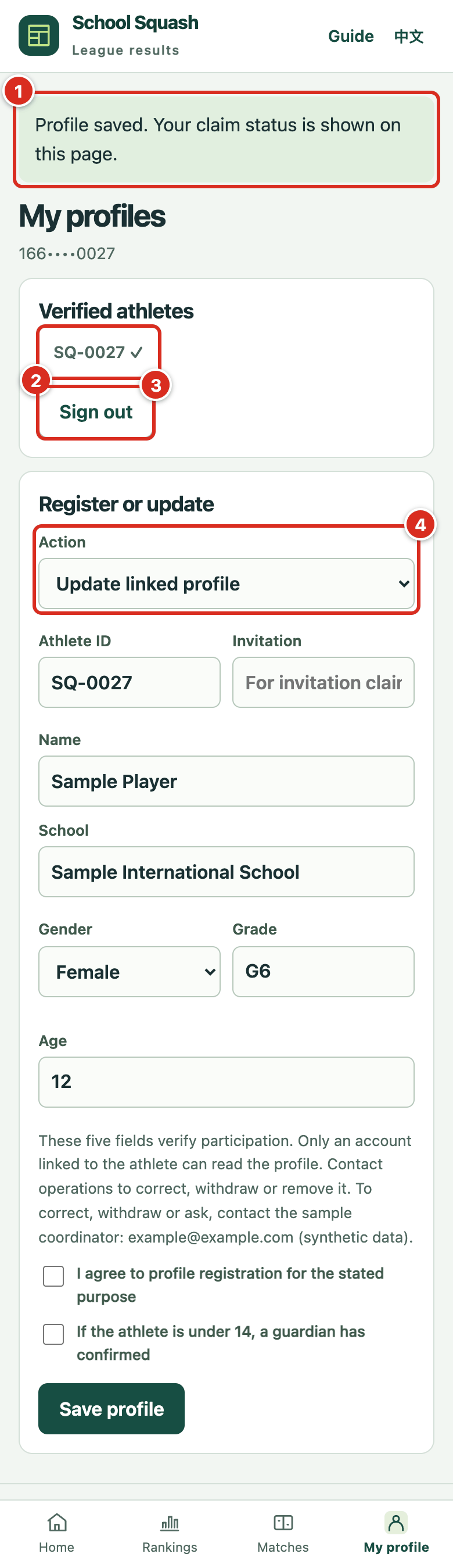
- Confirmation that the profile is saved.
- The linked athlete ID. If you manage several athletes, they appear side by side. Select one to switch.
- Select Sign out when you finish, especially on a shared device.
- Next time, choose Update linked profile to correct your details. To change the phone number, unlink, withdraw or remove, contact the organizer.
Rules and contact
Scoring tiers, tie-break and school-point rules, and the organizer’s contact details are on Event information.
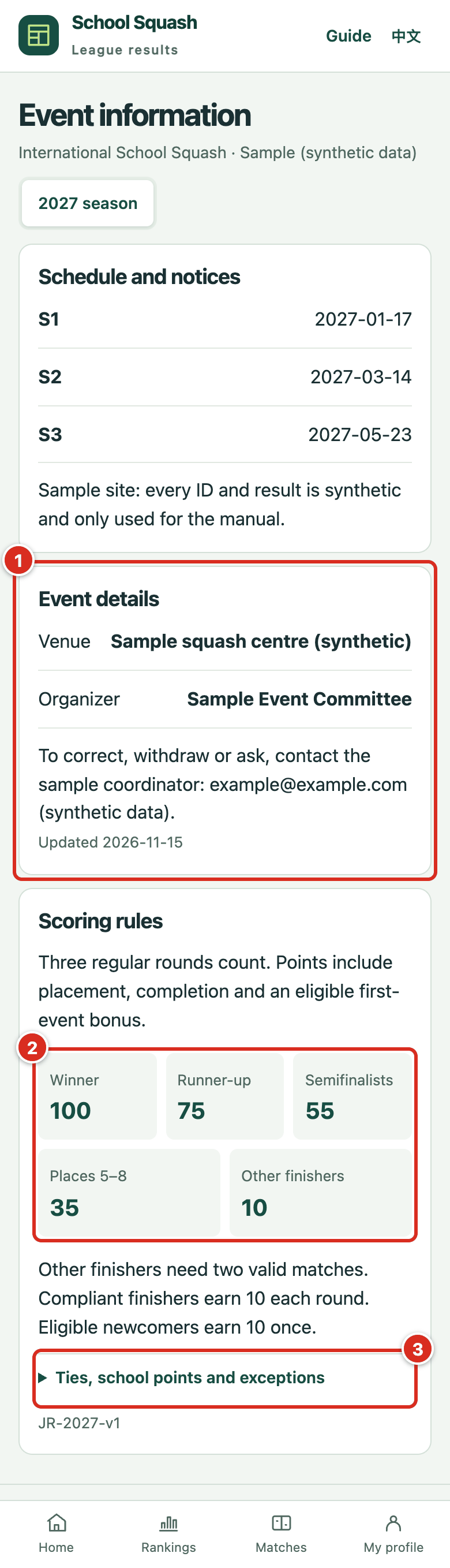
- Venue, organizer and contact details. To correct, withdraw or question a score, contact the organizer here.
- Points per round for Winner, Runner-up, Semifinalists, Places 5–8 and Other finishers. Completion and newcomer bonuses are added on top.
- Open Ties, school points and exceptions to see how ties, school points and special cases are handled.
Missing or unexpected scores
Check season, division and round. The 2027 opener is January 17. Results appear after the organizer publishes the round. School standings are reviewed separately. An overall score can be available without game-by-game details.
To request a review, give the organizer the public ID, round and disputed points. Contact the organizers through the event’s WeChat official account.
Rules and contact →